
The headline first: DotPeek is now on the Mac App Store at US$12.99, down from US$17.99, through August 31, 2026. It needs macOS 15 or later.
- Download: Mac App Store
- Site: dotpeek.humanstar.ai
- And if you feel like helping out: leave a review on Product Hunt
Now, where it came from and what it actually does.
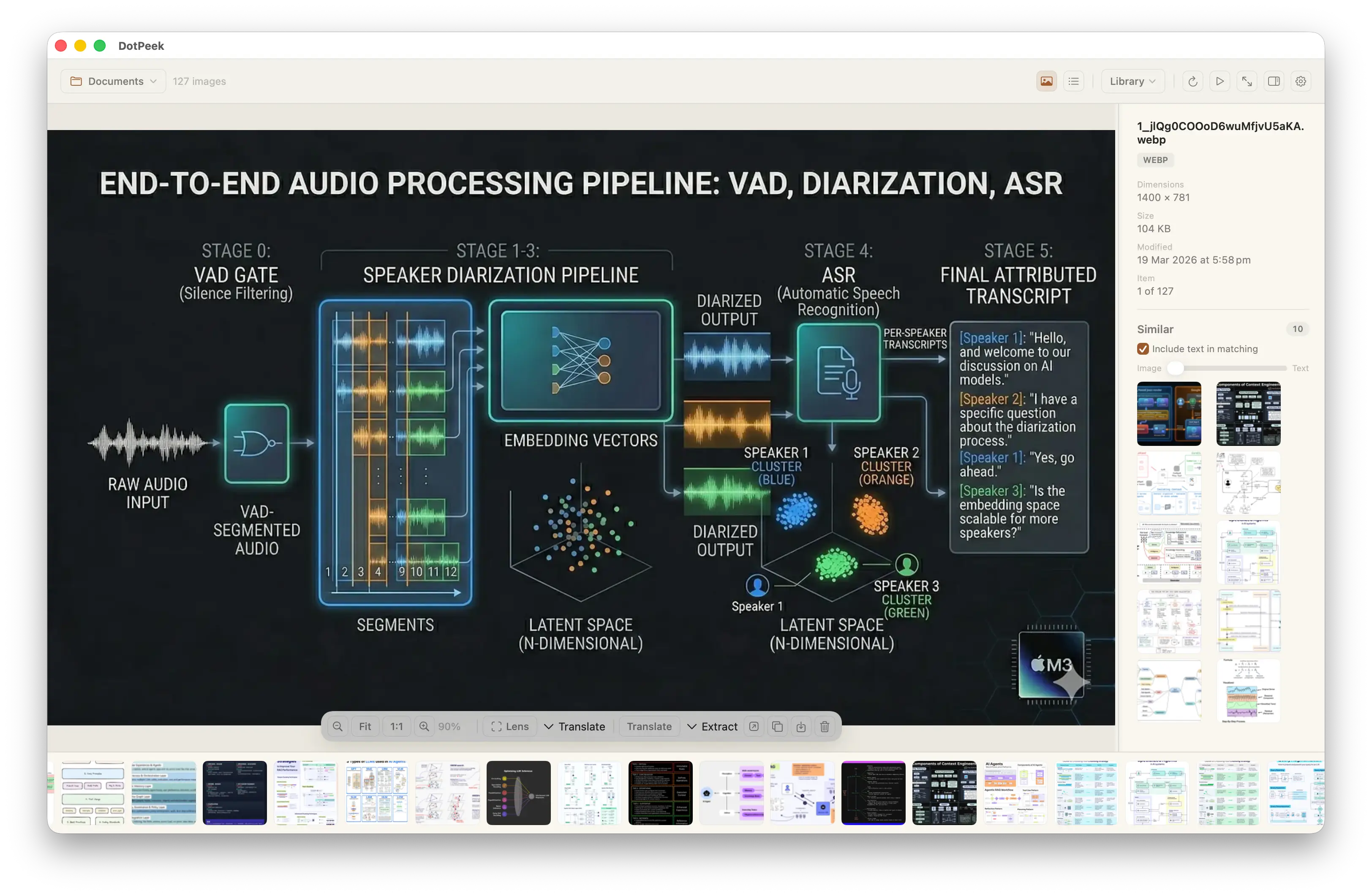
Why write yet another image viewer
I’ve been looking at a lot of images for a lot of years, so an image viewer is not optional for me. The trouble is that none of the existing ones satisfy me. Times change, ai gets better, and what I want from a pile of images stopped being “viewing” a long time ago.
At the same time, I don’t want a remote ai knowing what images sit on my machine, and I don’t want it learning my tastes. When I ask for a line of text to be translated, I don’t want a remote ai deciding whether it deserves translating. And then there’s speed, cost, and needing a network at all.
Every one of those points in the same direction: local first.
Meanwhile ai coding kept breaking through its own ceiling and the Mac’s own on-device intelligence kept getting stronger, so an idea took shape: write a native image explorer that runs entirely on the machine and leans on nothing but the Mac’s own intelligence. That’s DotPeek.
Everything under the hood ships with the system: Vision for recognition and OCR, Natural Language for meaning, Translation for translation, AVFoundation for reading aloud. No cloud processing, no uploads, no accounts, no tracking.
What it does
Scenario 1: Just looking at one image gets dull
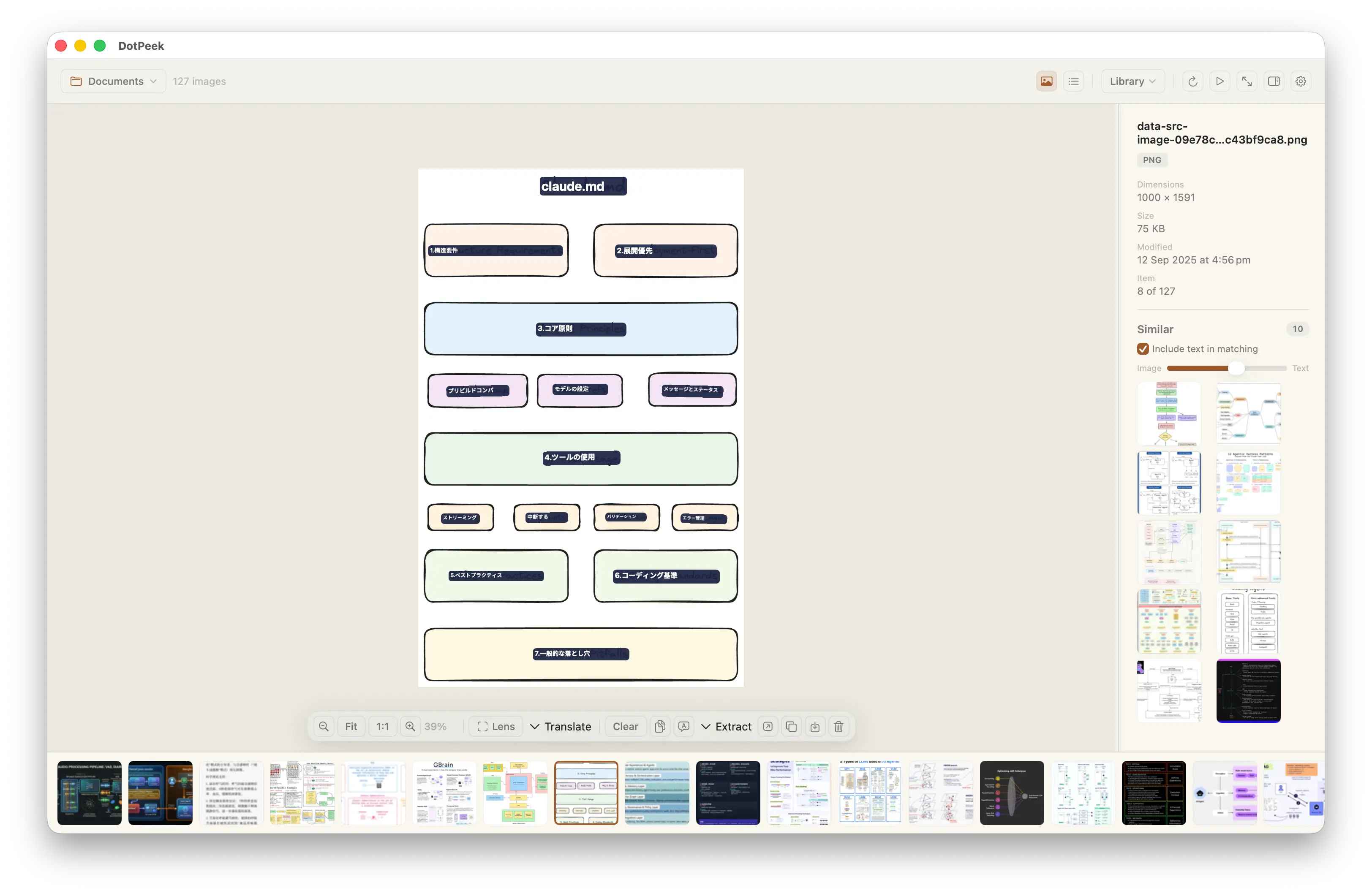
So it lists similar ones for you. And not just by how the image looks — it weighs the text inside the image too. Fusing the two signals lands much closer to the picture you actually had in mind.
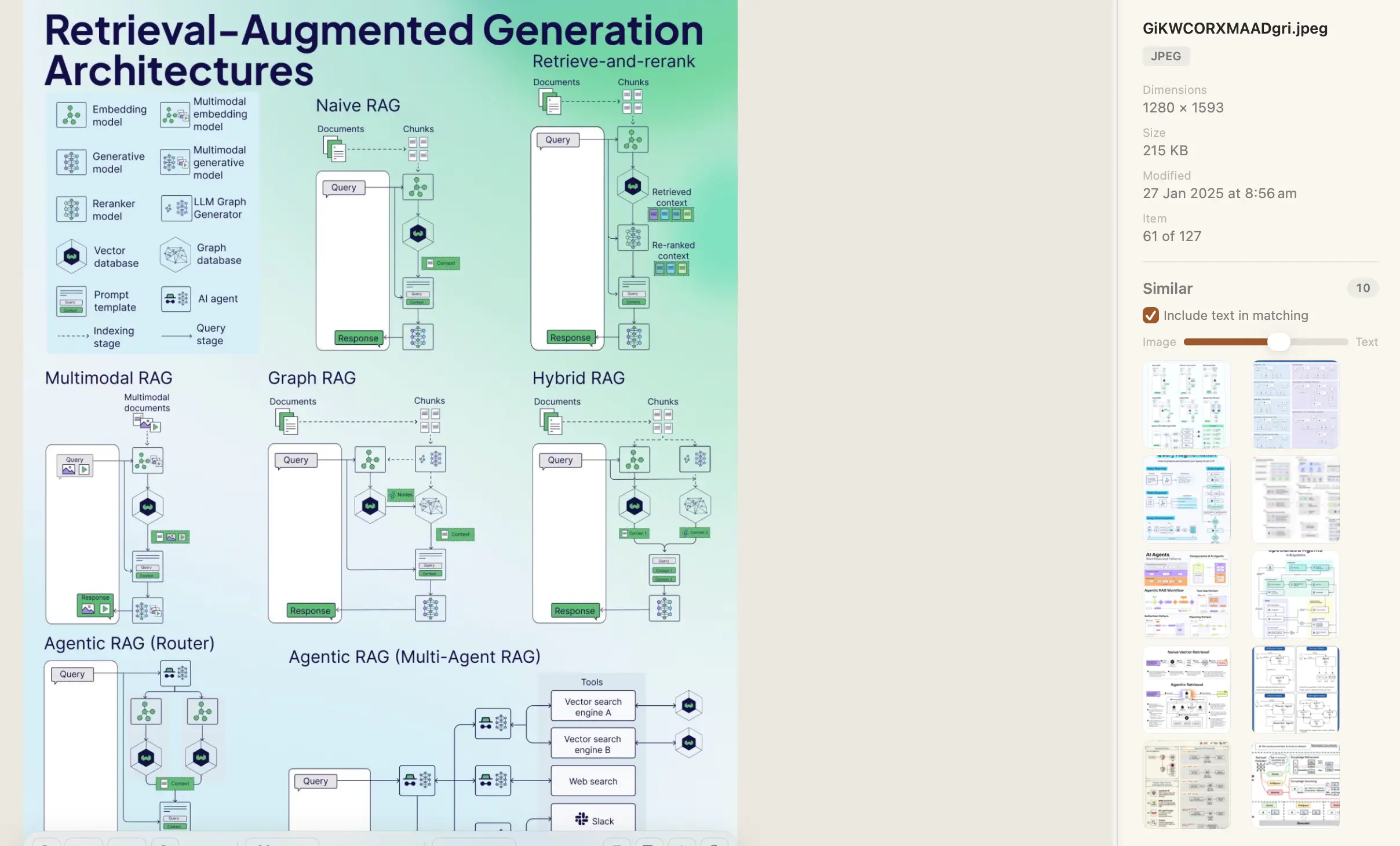
Scenario 2: You can’t remember whether you already downloaded this
Deduplication has your back. Exact and near-duplicates are listed as groups, and DotPeek pre-checks which one to keep for you — highest resolution, largest file, newest, oldest, your call — so the rest go to the Trash in one move.
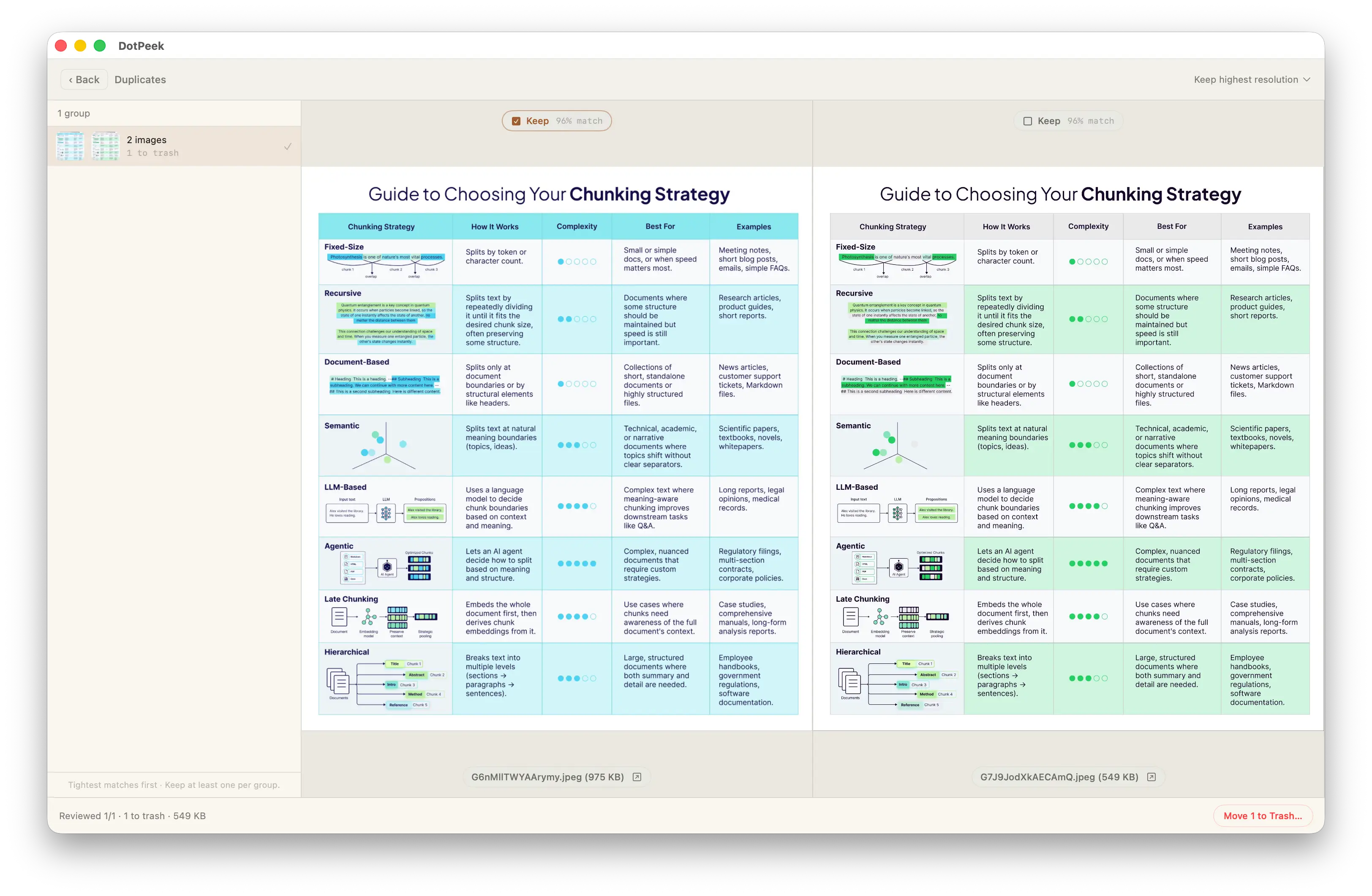
Scenario 3: You want what’s inside the image, not the image
Writing something and need the text out of a screenshot, with the formatting intact — a table especially? Fine: it comes out as a Markdown table, as CSV, or as a layout grid that keeps everything roughly where it sat on the page.
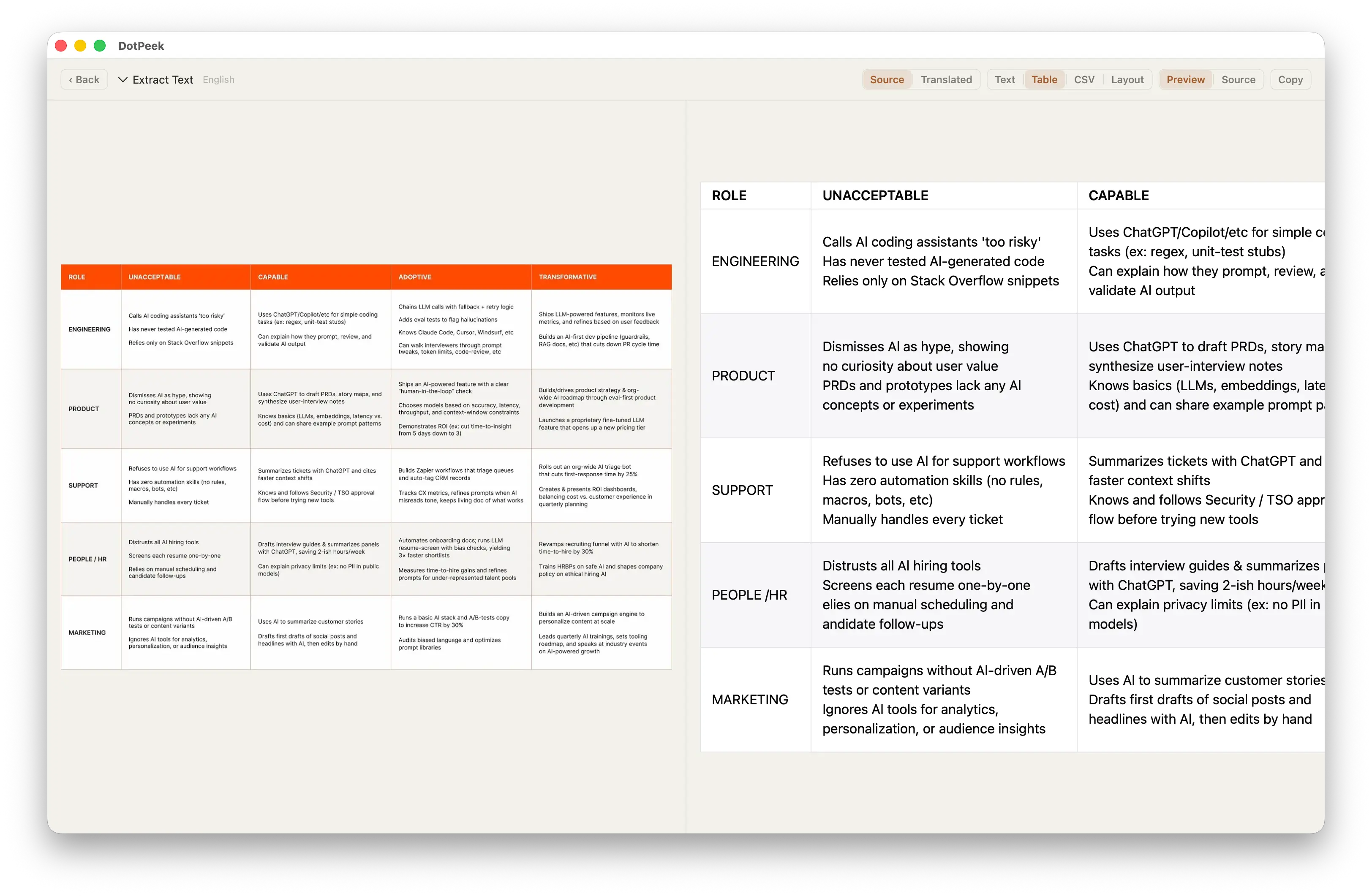
And the extracted text can be translated too. See that “Translated” next to “Source”? 😄
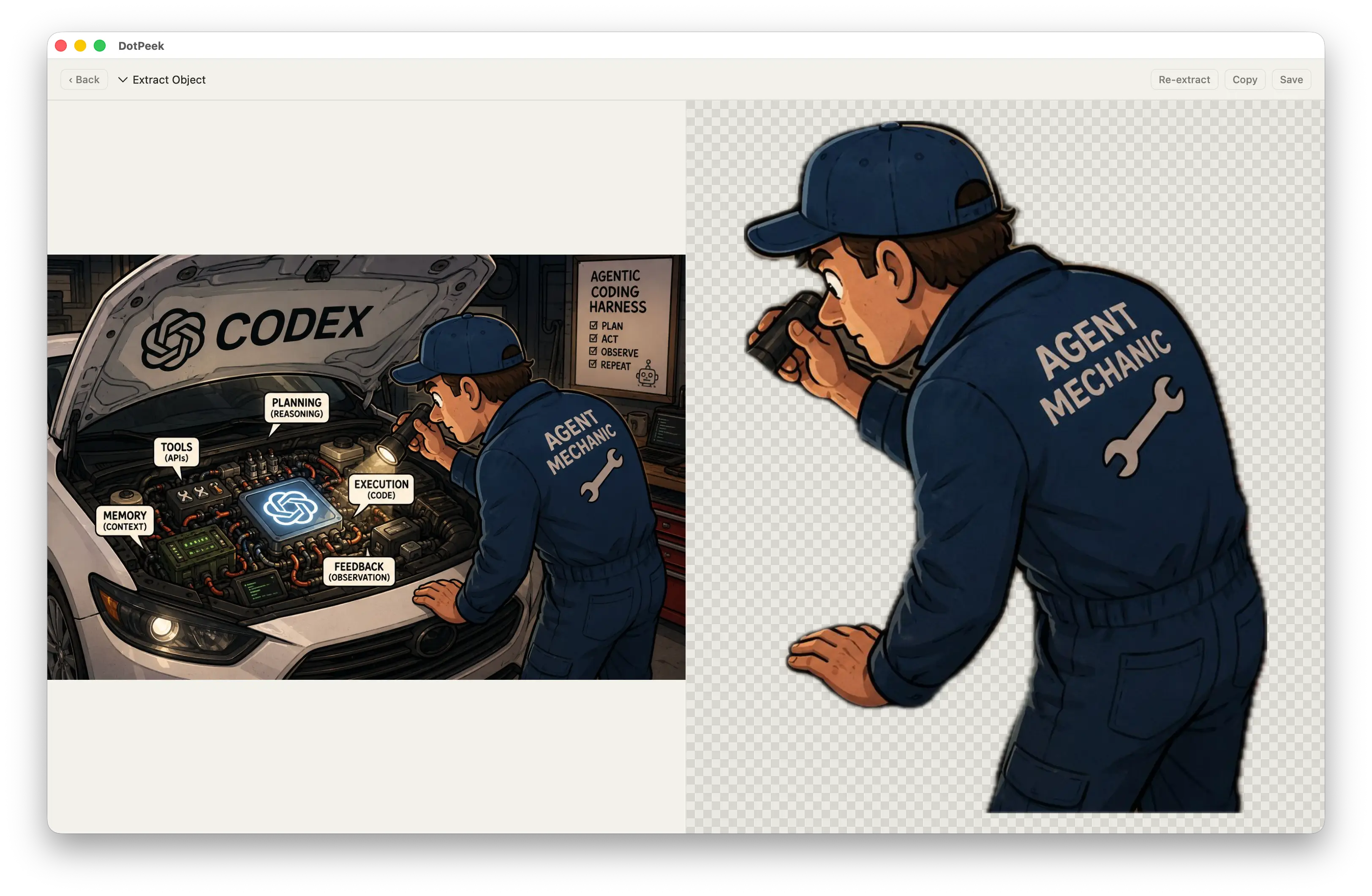
If it’s the subject you want rather than the words, that works as well: lift it out as a transparent PNG.
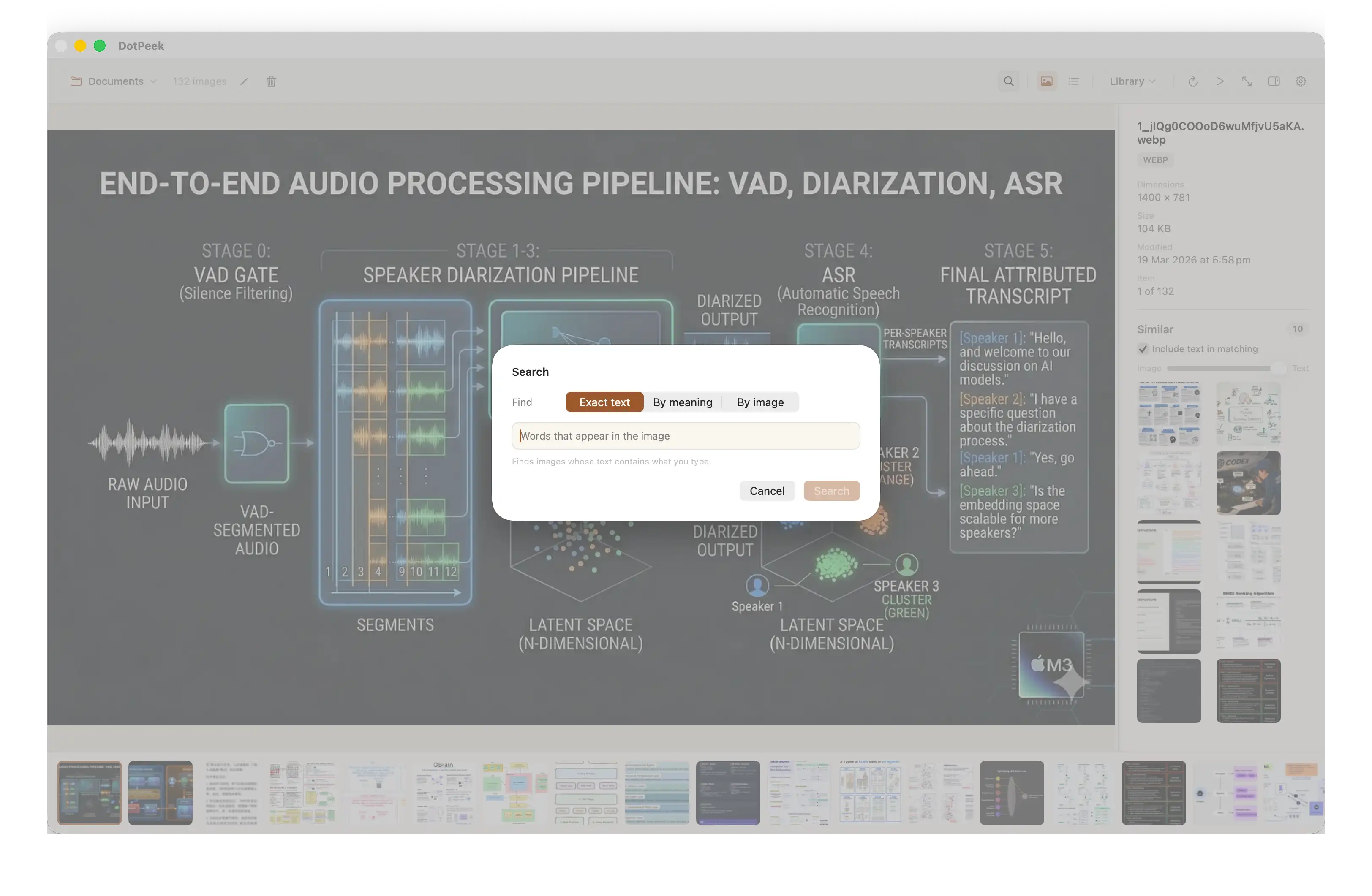
Scenario 4: Finding an image
Halfway through writing you want that image from months ago, and all you remember is what was in it. Search by words, either exact matches or by meaning.
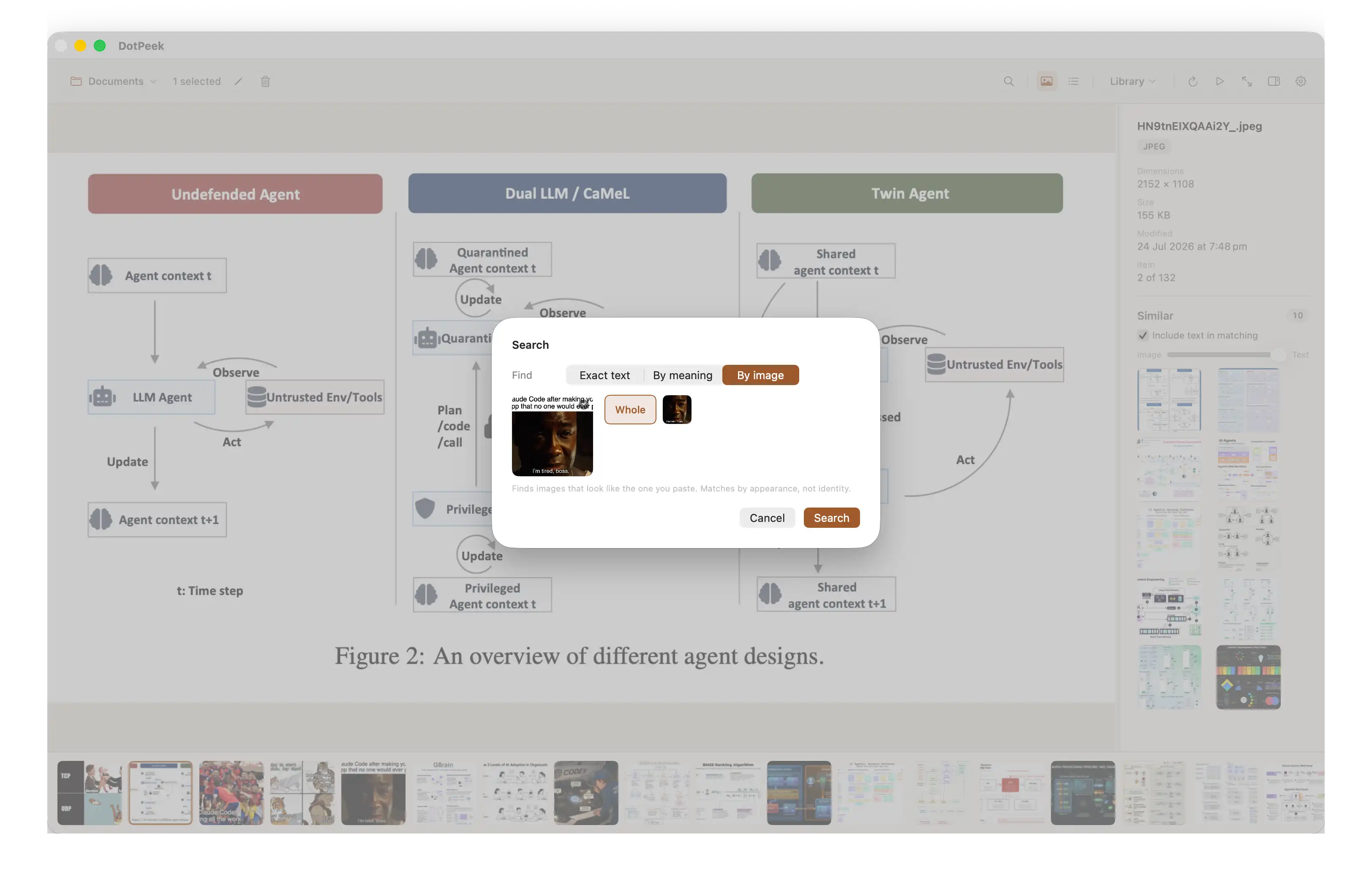
Searching by image works too: the whole picture, or just one face in it.
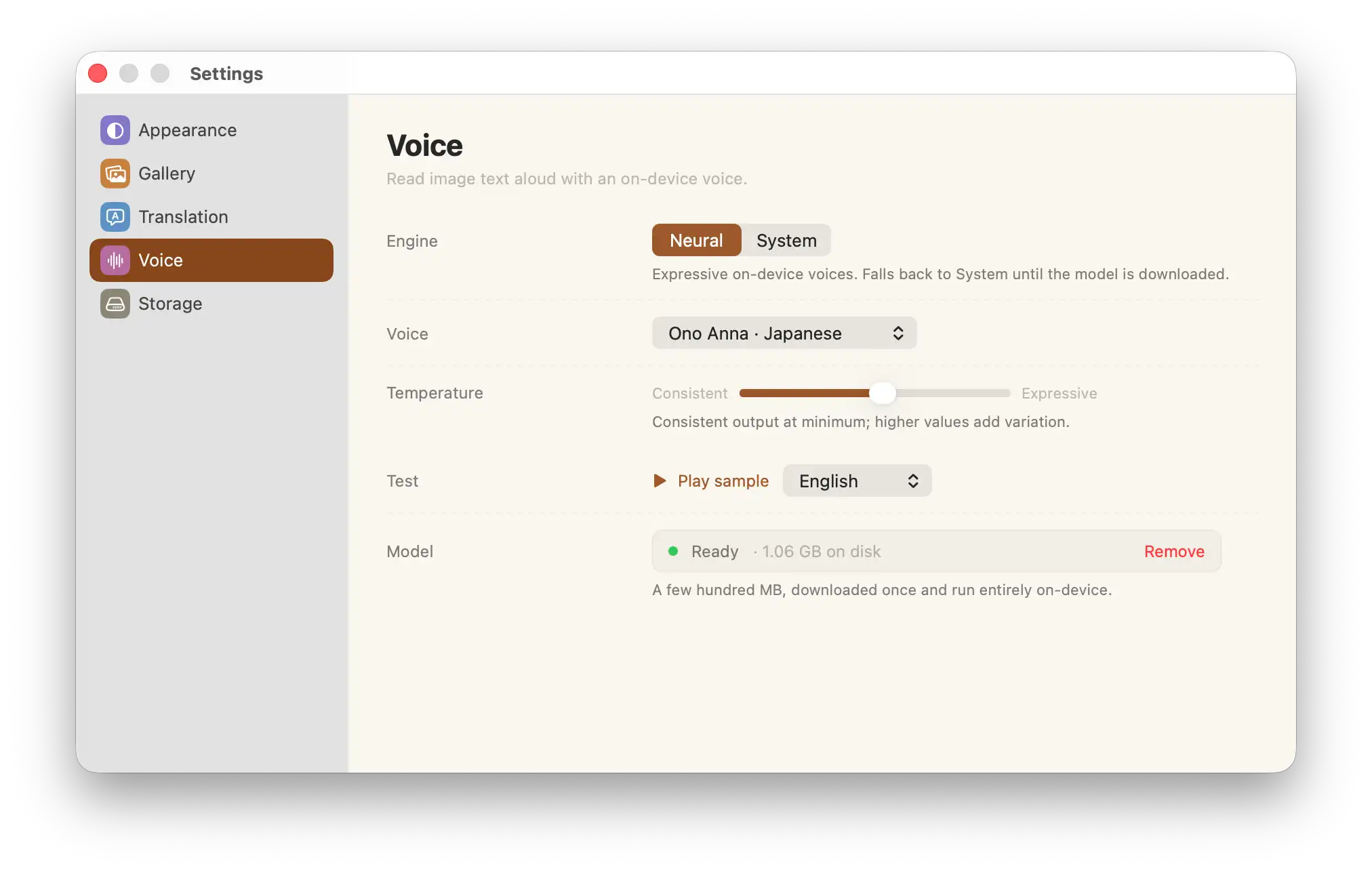
Scenario 5: Let the image talk
Too quiet in here? Have it read to you — “Lens” ▸ “Read aloud”. The system voice works out of the box; if it sounds too flat for you, download the neural voice model, which sounds considerably better.
Scenario 6: The new chapter is out and you can’t read the text
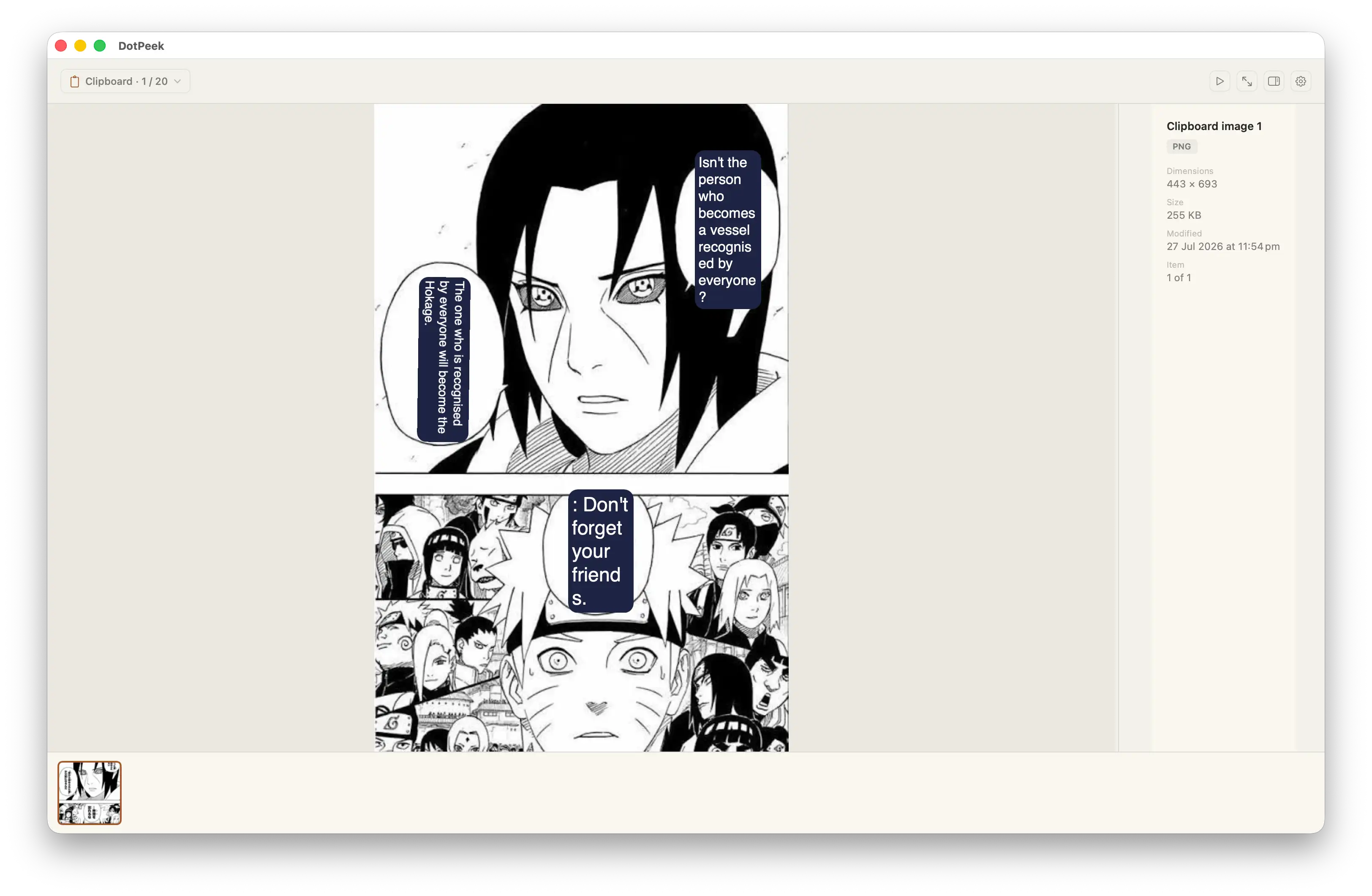
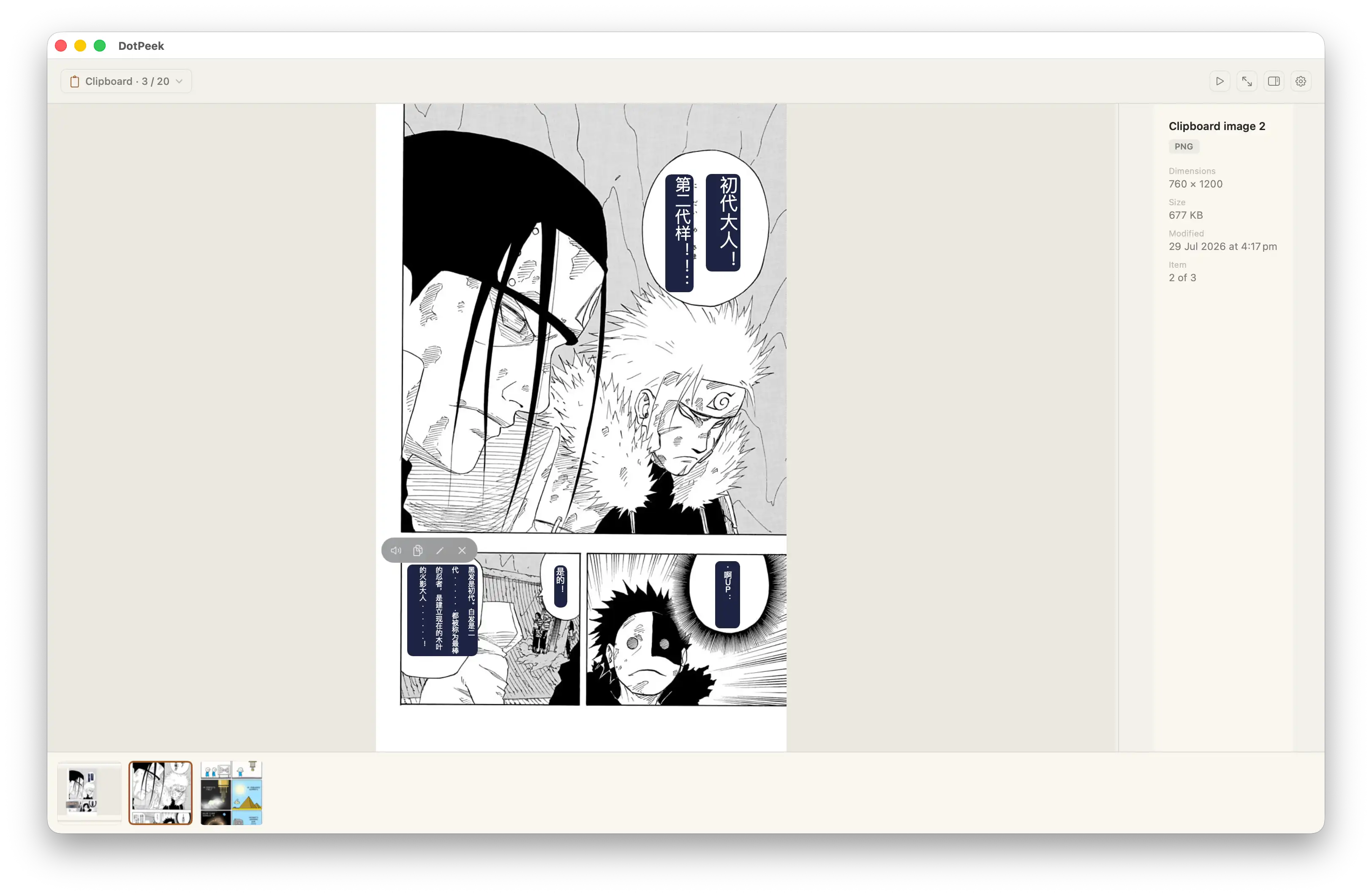
Image translation puts the translation right where the original text was.
Vertical text — the comic-book default — included: the translation runs down its columns, right to left, the way the original did.
Every translation plate can be read aloud, edited, dragged, or closed, so you can clear away whatever got misread, or fix the one line the machine translated badly yourself. Once you’ve fixed it, Copy image and Export carry your edit.
Scenario 7: Throwaway image work
If you’re only handling a few images and don’t want files on disk for them, use the clipboard gallery: copy an image, switch the source to the clipboard, and work with it exactly like any other image. It keeps the last 20, and quitting clears it.
Take another look at the shots above — check the top-left corner. ;)
A few smaller conveniences
- List view: sort by name, format, dimensions, size, or date, and hover a row to preview it.
- Batch rename and delete.
- Lens: drag a box on the image to magnify, translate, read aloud, or extract text in place.
- Slideshow: full-screen auto-advance, shuffle optional, looping optional, speed yours to pick.
- WebP export: lossless or lossy, translations baked in if you want them, typically 25–35% smaller than PNG.
- Keyboard first: ⌘O opens a folder, ⌘F searches, arrow keys move, ⎋ goes back.
- The interface speaks four languages — Simplified and Traditional Chinese, Japanese, English — following macOS or set explicitly in Settings.
And the parts that fall short
DotPeek isn’t perfect. It doesn’t “enhance” your images, and it depends entirely on local models. So:
- It won’t understand an image as well as a remote LLM does.
- It can be wrong: a bad translation, a misread line, or nothing recognized at all.
- Vertical Japanese is limited by what the system can do on macOS 15; there it falls back to a whole-page translation panel instead of per-block plates.
That’s the price of local first, and I think it’s worth paying: your images, and the text recognized in them, never leave your Mac. Analysis results are cached in a local database so the next pass is faster, and both the cache size and the button that clears it live in Settings ▸ Storage.
It’ll keep improving, folding in whatever on-device intelligence each new version of macOS brings and turning it into something you’d actually reach for.
One more time, then: US$12.99, through August 31. If it earns its keep, drop a line on Product Hunt — for an indie developer that’s worth more than anything else. 😄